
What You’ll Learn
- Why extensions appear to be missing
- How to reveal hidden extensions
- Prevent this issue from recurring
Prerequisites
- MainWP Dashboard with extensions installed
Why This Happens
Browser password managers sometimes misidentify the Search and API Key fields as username/password fields. When they auto-fill these fields with saved credentials, the search filter applies to your extension list. Since your auto-filled username likely doesn’t match any extension name, all extensions are filtered out and the page appears empty.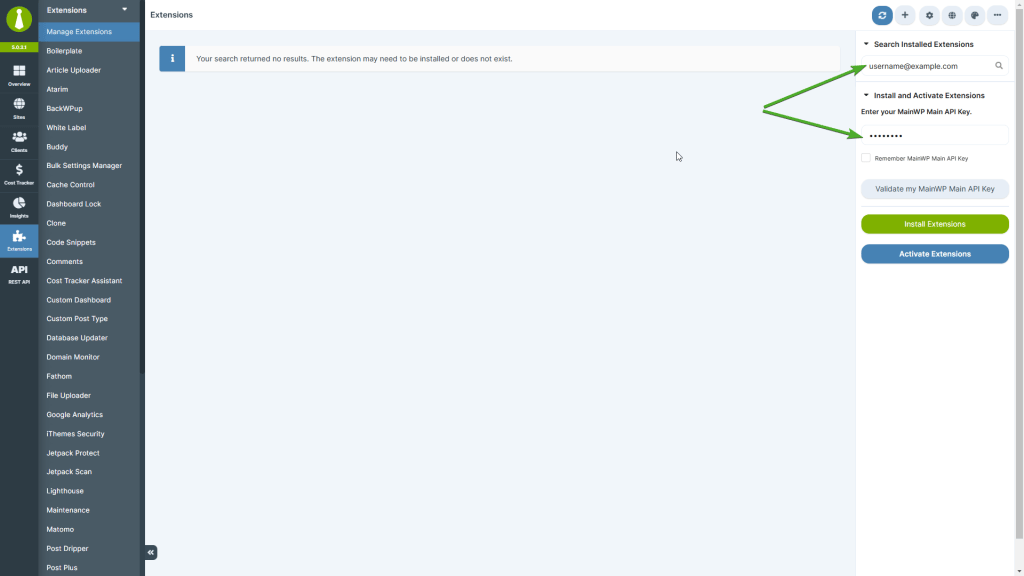
Reveal Your Extensions
1
Go to the Add-ons page
Navigate to MainWP > Add-ons.
2
Check the search field
Look at the Find add-on… field at the top of the page.
3
Clear auto-filled text
If there’s text in the search field, delete it completely.
4
View extensions
Your installed extensions should now appear.
Prevent Auto-Fill Issues
Option 1: Exclude MainWP from Password Manager
Configure your browser’s password manager to not save or fill credentials for your MainWP Dashboard URL.Option 2: Use a Different Browser
If you consistently experience this issue, try accessing your Dashboard with a different browser or in incognito/private mode.Option 3: Disable Browser Auto-Fill
Temporarily disable your browser’s auto-fill feature when working in MainWP:Extensions Still Missing?
If clearing the search field doesn’t reveal your extensions:Self-Check Checklist
- Find add-on… field is empty
- Extensions now visible on the page
- Password manager excluded MainWP (optional)
- Extensions properly installed and activated
Related Resources
- Manage Add-ons - Install and manage add-ons
- Troubleshoot Extension Licensing - License activation issues