> ## Documentation Index
> Fetch the complete documentation index at: https://mainwp-docs-openapi-6-1-5-fixes.mintlify.site/llms.txt
> Use this file to discover all available pages before exploring further.

# Manage Pages

> Manage WordPress pages across your Child Sites from the MainWP Dashboard. Create, edit, schedule, change status, and delete pages remotely without logging into each child site separately.

The Manage Pages feature lets you create, edit, schedule, and delete WordPress pages across all your child sites from a central location. Search for pages across your network, restore trashed pages, and manage content without logging into each site individually.

## What You'll Accomplish

* Search and view pages across all child sites
* Create new pages on one or multiple sites
* Schedule pages for future publication
* Edit existing pages
* Delete and restore pages

## Prerequisites

* MainWP Dashboard installed and activated
* At least one child site connected to your Dashboard
* Administrator access to your Dashboard site

<Note>
  MainWP supports default WordPress post types. For custom post types, use the [MainWP Custom Post Types Extension](https://mainwp.com/extension/custom-post-types/).
</Note>

***

<iframe className="w-full aspect-video rounded-xl" src="https://www.youtube.com/embed/O4jG-GRHE2Q" title="Manage Pages - Video Tutorial" frameBorder="0" allow="accelerometer; autoplay; clipboard-write; encrypted-media; gyroscope; picture-in-picture" allowFullScreen />

***

## View Existing Pages

<Steps>
  <Step title="Navigate to Manage Pages">
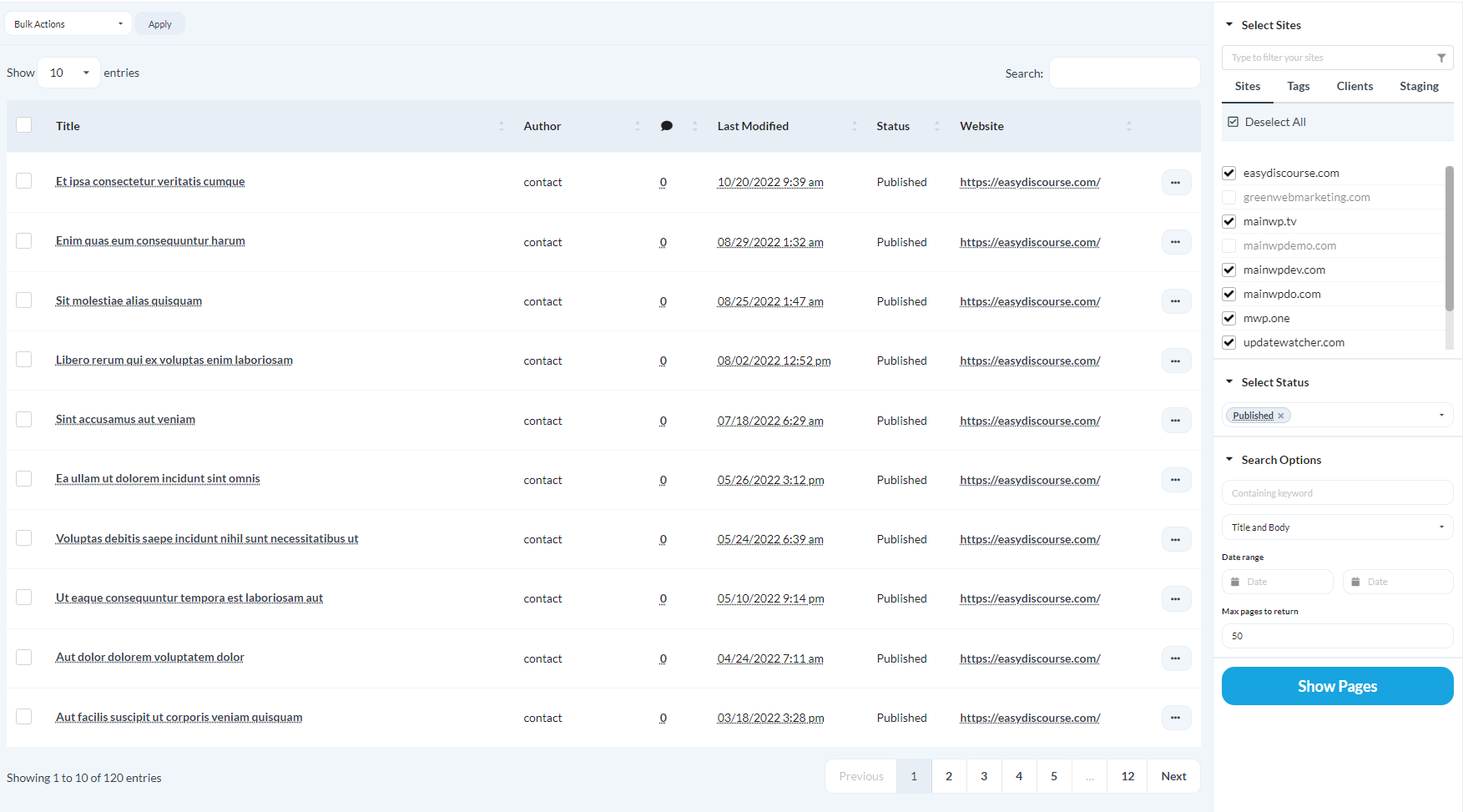
    Go to **MainWP > Sites > Content Operations > Manage Pages**.

    <img src="https://mintcdn.com/mainwp-docs-openapi-6-1-5-fixes/f5Mi1Gk4P82tuZ7y/images/dashboard/sites-content-192db1.png?fit=max&auto=format&n=f5Mi1Gk4P82tuZ7y&q=85&s=c2523fdbe3bea22a204bd20d7911d87c" alt="Go to MainWP > Sites > Content Operations > Manage Pages" data-og-width="1753" width="1753" data-og-height="973" height="973" data-path="images/dashboard/sites-content-192db1.png" data-optimize="true" data-opv="3" srcset="https://mintcdn.com/mainwp-docs-openapi-6-1-5-fixes/f5Mi1Gk4P82tuZ7y/images/dashboard/sites-content-192db1.png?w=280&fit=max&auto=format&n=f5Mi1Gk4P82tuZ7y&q=85&s=ffd71625eccc0ec7d02022c86444f6d8 280w, https://mintcdn.com/mainwp-docs-openapi-6-1-5-fixes/f5Mi1Gk4P82tuZ7y/images/dashboard/sites-content-192db1.png?w=560&fit=max&auto=format&n=f5Mi1Gk4P82tuZ7y&q=85&s=0ad7433fbed11dc412b3f631e9ba58f2 560w, https://mintcdn.com/mainwp-docs-openapi-6-1-5-fixes/f5Mi1Gk4P82tuZ7y/images/dashboard/sites-content-192db1.png?w=840&fit=max&auto=format&n=f5Mi1Gk4P82tuZ7y&q=85&s=73efbb4b4a05080222a67cd73f1dfca7 840w, https://mintcdn.com/mainwp-docs-openapi-6-1-5-fixes/f5Mi1Gk4P82tuZ7y/images/dashboard/sites-content-192db1.png?w=1100&fit=max&auto=format&n=f5Mi1Gk4P82tuZ7y&q=85&s=ca2eb84c0bbead31f641ca6c73b7039c 1100w, https://mintcdn.com/mainwp-docs-openapi-6-1-5-fixes/f5Mi1Gk4P82tuZ7y/images/dashboard/sites-content-192db1.png?w=1650&fit=max&auto=format&n=f5Mi1Gk4P82tuZ7y&q=85&s=10e8651169491188f08a31f6e8b7021b 1650w, https://mintcdn.com/mainwp-docs-openapi-6-1-5-fixes/f5Mi1Gk4P82tuZ7y/images/dashboard/sites-content-192db1.png?w=2500&fit=max&auto=format&n=f5Mi1Gk4P82tuZ7y&q=85&s=f776745906df10abb195a2cdd21f9d17 2500w" />
  </Step>

  <Step title="Set search filters">
    In the **Search** section:

    | Filter     | Description                                                    |
    | ---------- | -------------------------------------------------------------- |
    | Status     | Filter by Published, Pending, Private, Scheduled, Draft, Trash |
    | Keyword    | Search for specific text in page titles or content             |
    | Date Range | Filter pages last modified within a date range                 |
  </Step>

  <Step title="Select sites">
    [Select the child sites](/getting-started/mainwp-user-interface) you want to search.
  </Step>

  <Step title="Search">
    Click **Show Pages**.

    A list of matching pages appears at the bottom of the page.
  </Step>
</Steps>

<Note>
  By default, MainWP returns up to 50 pages per child site. You can change this limit using **Max pages to return** under **Search Options**.
</Note>

***

## Create a New Page

<Steps>
  <Step title="Navigate to Add New">
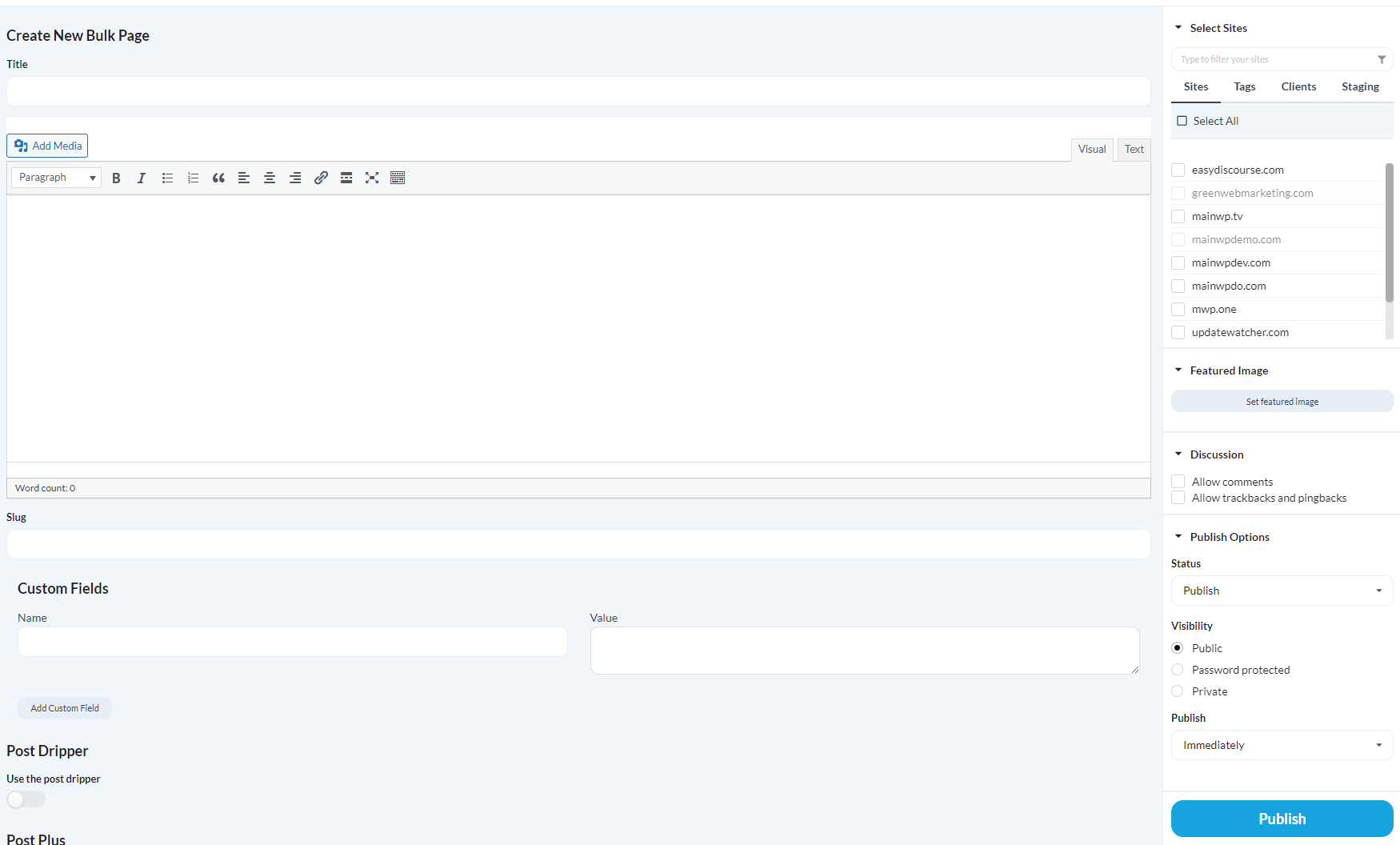
    Go to **MainWP > Sites > Content Operations > Manage Pages**, then click **Create New Page**.

    <img src="https://mintcdn.com/mainwp-docs-openapi-6-1-5-fixes/f5Mi1Gk4P82tuZ7y/images/dashboard/sites-content-2da0bc.png?fit=max&auto=format&n=f5Mi1Gk4P82tuZ7y&q=85&s=aded3dfd97174d2f873cc3128ee042a7" alt="Create a new bulk page in MainWP Dashboard" width="1750" height="1056" data-path="images/dashboard/sites-content-2da0bc.png" />
  </Step>

  <Step title="Enter page content">
    Complete the page fields:

    | Field               | Required | Description         |
    | ------------------- | -------- | ------------------- |
    | Title               | No       | Page title          |
    | Content             | No       | Page body content   |
    | Custom Fields       | No       | Additional metadata |
    | Discussion Settings | No       | Comment options     |
    | Featured Image      | No       | Page thumbnail      |
    | Slug                | No       | Custom URL path     |
  </Step>

  <Step title="Select sites">
    [Select the child sites](/getting-started/mainwp-user-interface) where you want to publish this page.
  </Step>

  <Step title="Publish">
    Click **Publish**.

    The page is created on all selected sites.
  </Step>
</Steps>

***

## Schedule a Page

<Steps>
  <Step title="Create page">
    Follow the steps above to create a new page (steps 1-3).
  </Step>

  <Step title="Set schedule">
    In the **Publish Options** section:

    1. Under **Publish**, select **Schedule**
    2. Set the date and time
  </Step>

  <Step title="Schedule">
    Click **Publish**.

    The page is scheduled on all selected sites.
  </Step>
</Steps>

<Note>
  Page preview is not available in the MainWP Dashboard because pages may display differently on each child site due to different themes and settings.
</Note>

***

## Edit an Existing Page

<Steps>
  <Step title="Search for page">
    Go to **MainWP > Sites > Content Operations > Manage Pages** and search for the page.
  </Step>

  <Step title="Edit">
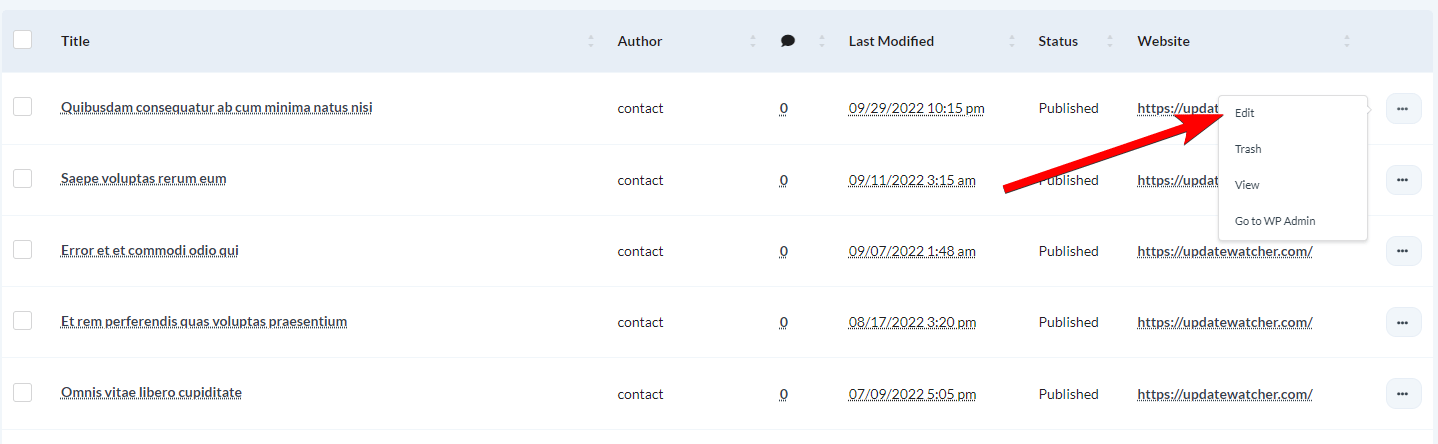
    Find the page in the results and click **Edit**.

    <img src="https://mintcdn.com/mainwp-docs-openapi-6-1-5-fixes/f5Mi1Gk4P82tuZ7y/images/dashboard/sites-content-7d8fd5.png?fit=max&auto=format&n=f5Mi1Gk4P82tuZ7y&q=85&s=61b3e46aba78115489e8937db2fc1de7" alt="Once the list of found pages appears" width="1438" height="444" data-path="images/dashboard/sites-content-7d8fd5.png" />
  </Step>

  <Step title="Update">
    Make your changes, then click **Publish**.
  </Step>
</Steps>

***

## View a Page on Its Site

<Steps>
  <Step title="Search for page">
    Go to **MainWP > Sites > Content Operations > Manage Pages** and search for the page.
  </Step>

  <Step title="View">
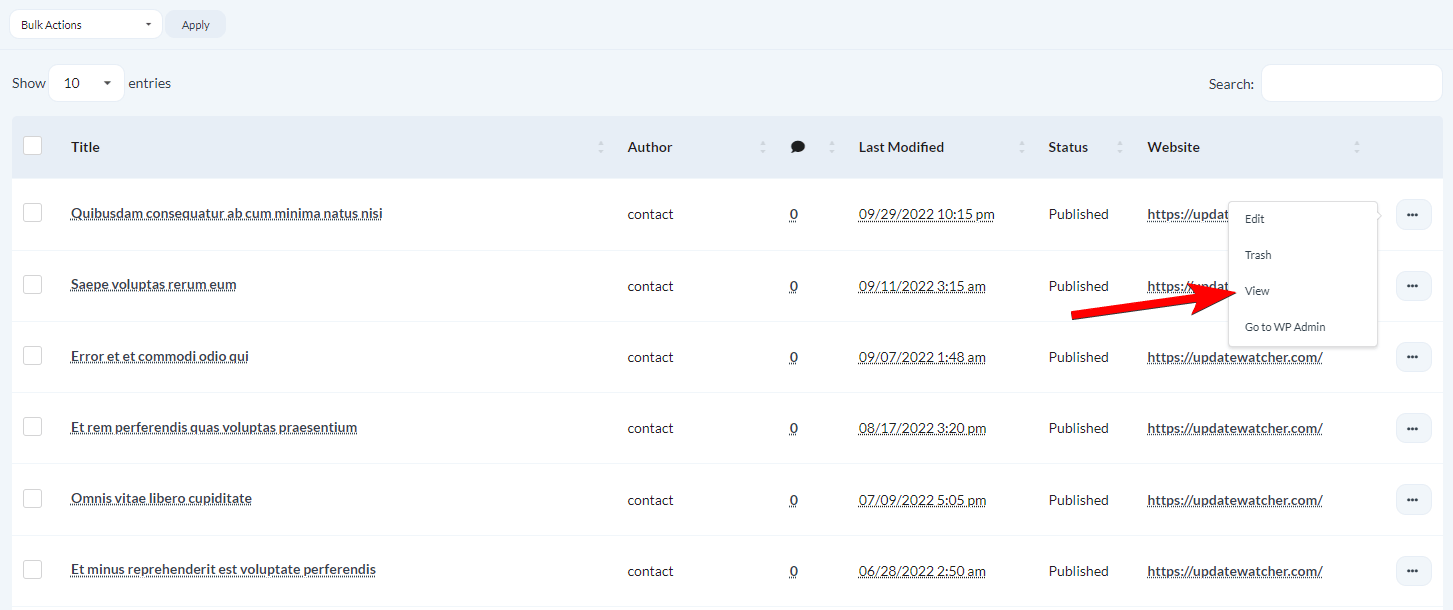
    Find the page in the results and click **View**.

    <img src="https://mintcdn.com/mainwp-docs-openapi-6-1-5-fixes/f5Mi1Gk4P82tuZ7y/images/dashboard/sites-content-0b49d8.png?fit=max&auto=format&n=f5Mi1Gk4P82tuZ7y&q=85&s=7448c233961540831e4ee28b424e6b55" alt="Once the list of found pages appears" width="1453" height="610" data-path="images/dashboard/sites-content-0b49d8.png" />

    The page opens on its child site in a new tab.
  </Step>
</Steps>

***

## Delete Pages

### Move to Trash

<Steps>
  <Step title="Search for page">
    Go to **MainWP > Sites > Content Operations > Manage Pages** and search for the page.
  </Step>

  <Step title="Trash">
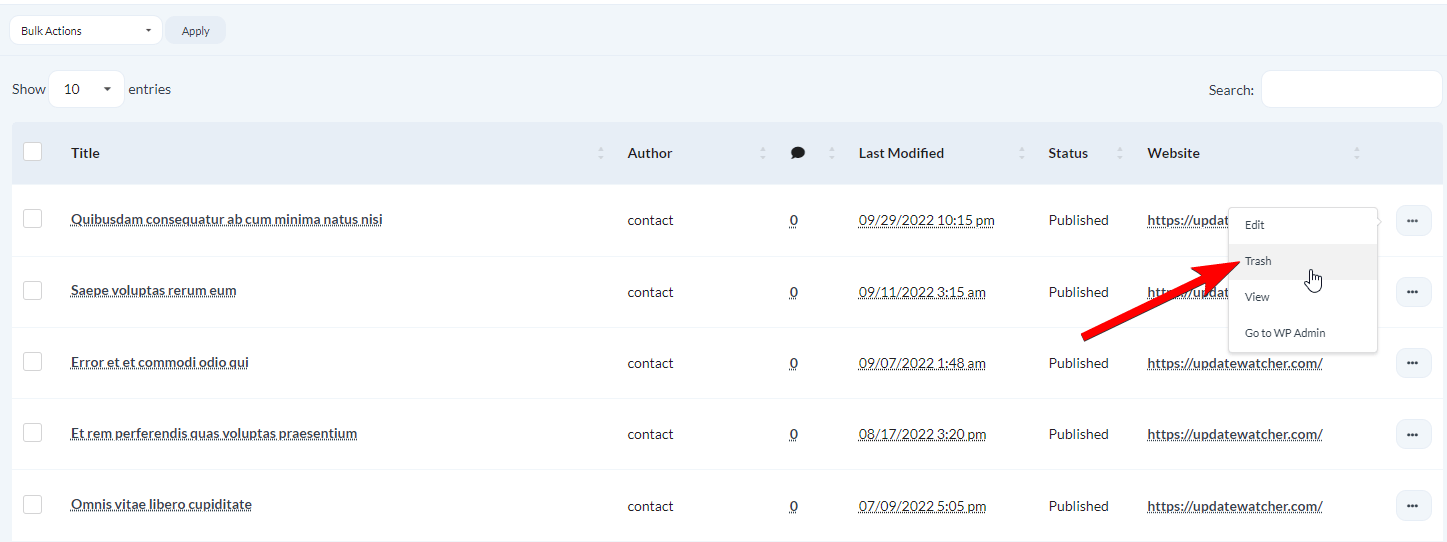
    Find the page and click **Trash**.

    <img src="https://mintcdn.com/mainwp-docs-openapi-6-1-5-fixes/f5Mi1Gk4P82tuZ7y/images/dashboard/sites-content-fb3a22.png?fit=max&auto=format&n=f5Mi1Gk4P82tuZ7y&q=85&s=e8ffd5e11eff75db2a3548645b58b3eb" alt="Once the list of found pages appears" width="1447" height="542" data-path="images/dashboard/sites-content-fb3a22.png" />
  </Step>
</Steps>

For multiple pages, select them using checkboxes and use **Bulk Actions > Move to trash**.

### Delete Permanently

The per-page **Delete permanently** action appears only for pages in Trash.

<Steps>
  <Step title="Search for trashed pages">
    Go to **MainWP > Sites > Content Operations > Manage Pages** and set **Status** to **Trash**.
  </Step>

  <Step title="Delete">
    Find the page and click **Delete Permanently**.
  </Step>
</Steps>

<Warning>
  **Bulk Actions > Delete permanently** can permanently delete selected pages even when they are not in Trash. This action cannot be undone.
</Warning>

***

## Restore a Page

<Steps>
  <Step title="Search for trashed pages">
    Go to **MainWP > Sites > Content Operations > Manage Pages** and set **Status** to **Trash**.
  </Step>

  <Step title="Restore">
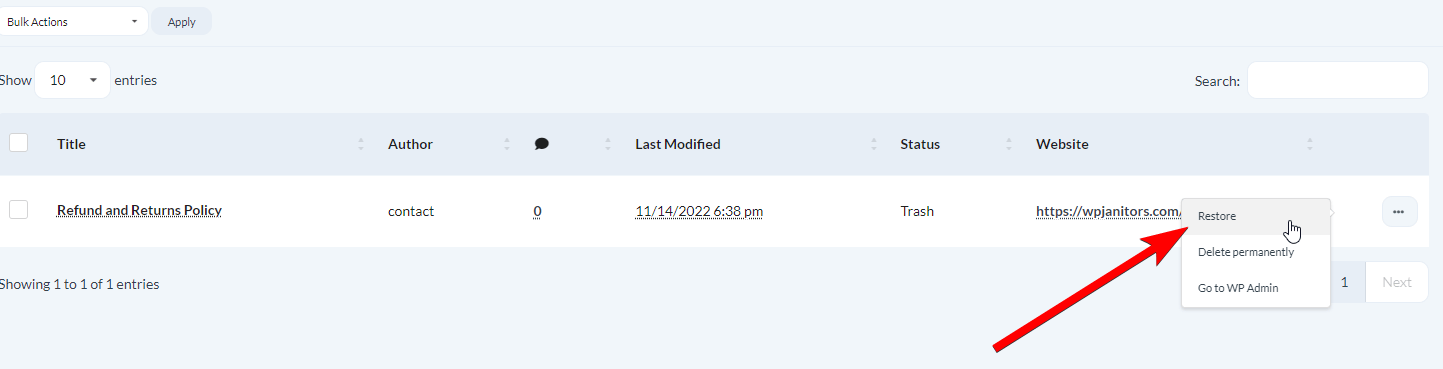
    Find the page and click **Restore**.

    <img src="https://mintcdn.com/mainwp-docs-openapi-6-1-5-fixes/f5Mi1Gk4P82tuZ7y/images/dashboard/sites-content-8ac77e.png?fit=max&auto=format&n=f5Mi1Gk4P82tuZ7y&q=85&s=7aad87b3fa6c656941839b5a7b2bd9ef" alt="Click the Restore action" width="1443" height="369" data-path="images/dashboard/sites-content-8ac77e.png" />
  </Step>
</Steps>

For multiple pages, select them using checkboxes and use **Bulk Actions > Restore**.

***

## Self-Check Checklist

* [ ] You can search and view pages across child sites
* [ ] New pages publish successfully to selected sites
* [ ] Scheduled pages show correct scheduling
* [ ] Page edits save correctly
* [ ] Deleted pages move to trash
* [ ] Trashed pages restore successfully

***

## Related Resources

* [Manage Posts](/sites/content/manage-posts) - Post management documentation
* [Custom Post Types Extension](https://mainwp.com/extension/custom-post-types/) - Manage custom post types
* [Boilerplate Extension](/add-ons/posts-pages/boilerplate-extension) - Create content templates